r/streaming
💬│chat 🎨│art 🔥│memes 🔧│tech-support-archive 🎮│free-games charity-announcements 👋│introductions 🎵│tunes 🥪│food 📸│photos ⭐│commissions ❗│rules 💯│raid-targets 💖│health 🔧│tech-support-archive

scott 9/10/2021 7:32 AM
What would you suggest hd60s or 60s +, think either would be more than fine for my uses but I can go for the 4k 60 if I needed I suppose. I do have a fair amount of peripherals plugged in. I have room for more, but if the bandwidth could be an issue, idk. Also, would I want to use my headset with my pc, so then I can hear stream alerts, Spotify, etc. with the elgato capturing the ps5’s sound, I should be able to hear everything through the pc right? Versus if I had my headset connected to the ps5, I’d only hear ps5 sounds, no stream alerts, Spotify, etc. So it seems like I’d need an extra usb mic to plug into the ps5, to communicate in game. And then have my other mic + headset connected to ps5. But then I fear there may be an echo or some issue if my stream is capturing two different mics, the ps5 mic, and my pc mic. Idk. I know I’m overthinking it, thank you.

Shanecus 9/10/2021 1:47 PM
Elgato HD60S + is better but costs more (normally) You should hear everything thru the pc If you plug in two mics and want no echoes you can mute certain inputs/outputs until it’s how you want it

TenderSausage 9/10/2021 2:15 PM
@Maryo23 I’ll make a vid later today.
2:20 PM
@Beezer The AMD encoder hasn’t improved as far as I know. 1440p60 is going to require a ton of resources, likely a dedicated encoding rig.
2:21 PM
That’s just SOOO many pixels per second… 221 million
2:22 PM
Versus 148m pixels/sec at 1080p60

Beezer 9/10/2021 2:23 PM
Cool, so I'd probably be better to drop it down to 1080p60 when using x264 then?
TenderSausage 9/10/2021 2:23 PM
If you’re gaming at 1440p, I’d recommend a downscale using the rule of 8
2:24 PM
And, depending on the game, x264 may be better, and with other games AMF will be.
2:24 PM
It depends on their resource consumption.
Beezer 9/10/2021 2:24 PM
Usually just Apex Legends and eFootball
2:24 PM
I'll give it a try dropping down the resolution and seeing how that goes. Appreciate the advice
TenderSausage 9/10/2021 2:25 PM
Give me a little bit and I can get you@some more details
2:25 PM
There are some “ideal” downscale resolutions that will make the game look better.

TenderSausage 9/10/2021 2:27 PM
But they’re weird, like 936p or 864p
Beezer 9/10/2021 2:44 PM
Yeah, just did a little test stream and it seems like even 1080p60 has the same issues when in game.
2:45 PM
reason I was going with 1440p in the first place was for the VP9 codec, anything below that seems to just use the avc1
TenderSausage 9/10/2021 3:06 PM
I don’t think VP9 is a good streaming encoder.
3:06 PM
For archival/local recording, it’s good
Beezer 9/10/2021 4:05 PM
Oh it isn't? I thought it was meant to be the best
Maryo23 9/10/2021 4:54 PM
@TenderSausage how do I make my image the same size as my canvas?
TenderSausage 9/10/2021 4:56 PM
We’ll need to double check your settings. I’ll be at my PC in a minute.
Maryo23 9/10/2021 4:56 PM
Ok
TenderSausage 9/10/2021 4:56 PM
Taking a shower to clean the depression off.
Maryo23 9/10/2021 4:59 PM

Maryo23 9/10/2021 5:38 PM
@TenderSausage
TenderSausage 9/10/2021 5:42 PM
Making your video, my guy
5:42 PM

Maryo23 9/10/2021 5:43 PM
5:43 PM
I use OBS streamlabs
Maryo23 9/10/2021 6:04 PM
@TenderSausage I'm not streaming anymore
TenderSausage 9/10/2021 6:21 PM
iT DIDN'T RENDER RIGHT... SORRY
6:23 PM
It'll be ready in 5 minutes, @Maryo23
Maryo23 9/10/2021 6:23 PM
TenderSausage 9/10/2021 6:31 PM
Shanecus
Elgato HD60S + is better but costs more (normally) You should hear everything thru the pc If you plug in two mics and want no echoes you can mute certain inputs/outputs until it’s how you want it
scott 9/10/2021 8:39 PM
How concerned should I be about bandwidth? I have a webcam, yeti nano, light, keyboard and mouse, etc.
Maryo23 9/10/2021 8:54 PM
Videos good just that I use OBS streamlabs so it took me a second to find some stuff and I could not find some other stuff
TenderSausage 9/10/2021 9:21 PM
@scott Just make sure your capture card and webcam are not plugged into a hub and you should be good.
TenderSausage
@scott Just make sure your capture card and webcam are not plugged into a hub and you should be good.
scott 9/10/2021 9:23 PM
Okay thank you

Deleted User 9/11/2021 5:41 AM
would anyone be willing to get in a call with me and help set up my stream like settings wise? When i try to stream apex its lagging and stutters and idk what im doing. thanks
5:41 AM
ive tried everything and it will get alittle smoother but its always has a choppy look
scott 9/12/2021 5:21 PM
I wish I could be more help but besides lowering your bitrate and or getting a better computer/internet idk what to say
5:23 PM
Does anyone have a ps5 and nba 2k? Mines unplayable due to horrible freezing every 5s. Sometimes I can go a few mins without it but that’s rare. Party chat also freezes whenever the game freezes which is also weird. Did the same on 2k21.
5:23 PM

ZiggyDottedU 9/13/2021 1:31 AM
Does anyone have a place they recommend to go to find free twitch/youtube style overlays?
ZiggyDottedU
Does anyone have a place they recommend to go to find free twitch/youtube style overlays?
scott 9/13/2021 7:06 AM
Nerdordie has some I think

TenderSausage 9/13/2021 4:16 PM
Optimal means best. YouRube is just telling you that the resolution is small compared to current standards.
TenderSausage 9/13/2021 4:24 PM
It should be 640x480, not the other way around.
Maryo23 9/13/2021 4:25 PM
OH
4:26 PM
I think it's fixed

Voidboi 9/14/2021 1:05 PM
Not sure where to ask this, but does anyone successfully stream with a gtx 1660s? I'm getting tons of skipped frames at encoder and a few at render. Have tried both 720p60 and 1080p30. My canvas is 1440p. I game on lowest settings (Apex). I basically just need to know if I need to buy a better gpu. Thanks!
Voidboi
Not sure where to ask this, but does anyone successfully stream with a gtx 1660s? I'm getting tons of skipped frames at encoder and a few at render. Have tried both 720p60 and 1080p30. My canvas is 1440p. I game on lowest settings (Apex). I basically just need to know if I need to buy a better gpu. Thanks!
TenderSausage 9/14/2021 2:32 PM
Once I’ve had some coffee…

TenderSausage 9/14/2021 4:41 PM
@Maryo23 Remind me, are you using SLOBS or OBS?
TenderSausage
@Maryo23 Remind me, are you using SLOBS or OBS?
Maryo23 9/14/2021 4:43 PM
SLOBS (edited)
TenderSausage 9/14/2021 4:45 PM
copypaste this int your start menu: %appdata%\slobs-client\node-obs\logs
4:46 PM
Send me the most recent log file you have.

4:49 PM
this?
TenderSausage 9/14/2021 4:49 PM
Yep, looking over it now
Maryo23 9/14/2021 4:50 PM
Ok
TenderSausage 9/14/2021 4:52 PM
@Maryo23 Why are you using video drivers from 2020?
4:52 PM
It's almost 2022. Please update those immediately.
Maryo23 9/14/2021 4:54 PM
I needed old Drivers for my GTX 660 to fix an error with Davinci resolve
4:55 PM
It won't work otherwise
TenderSausage 9/14/2021 4:55 PM
Then you'll have to pick one
4:55 PM
Streaming, or Davinci
Maryo23 9/14/2021 4:55 PM
I see
TenderSausage 9/14/2021 4:55 PM
Because you need a driver update
4:55 PM
Or you'll need to roll back to a much older version of SLOBS, if possible
Maryo23 9/14/2021 4:56 PM
Can I do that?
TenderSausage 9/14/2021 4:56 PM
I dunno, I've never tried
4:56 PM
You'd basically have to prevent automatic updates
4:56 PM
And remain on an older version that's more compatible with the 2020 drivers.
Maryo23 9/14/2021 4:56 PM
Ah I see
TenderSausage 9/14/2021 4:57 PM
In the log, it doesn't seem to be recognizing your video card as a device that can use the NVENC encoder, which is not correct.
Maryo23 9/14/2021 4:57 PM
Oh
TenderSausage 9/14/2021 4:57 PM
Here: [000:00:01:41.106.294.000][Warning] fatal: No NVENC capable devices found [000:00:01:41.106.396.200][Warning] [NVENC encoder: 'streaming_h264'] Failed to open NVENC codec: Generic error in an external library
4:59 PM
I suspect it's the result of the old driver, but I could be wrong.
Maryo23 9/14/2021 4:59 PM
might be

outofbandii 9/16/2021 4:40 PM
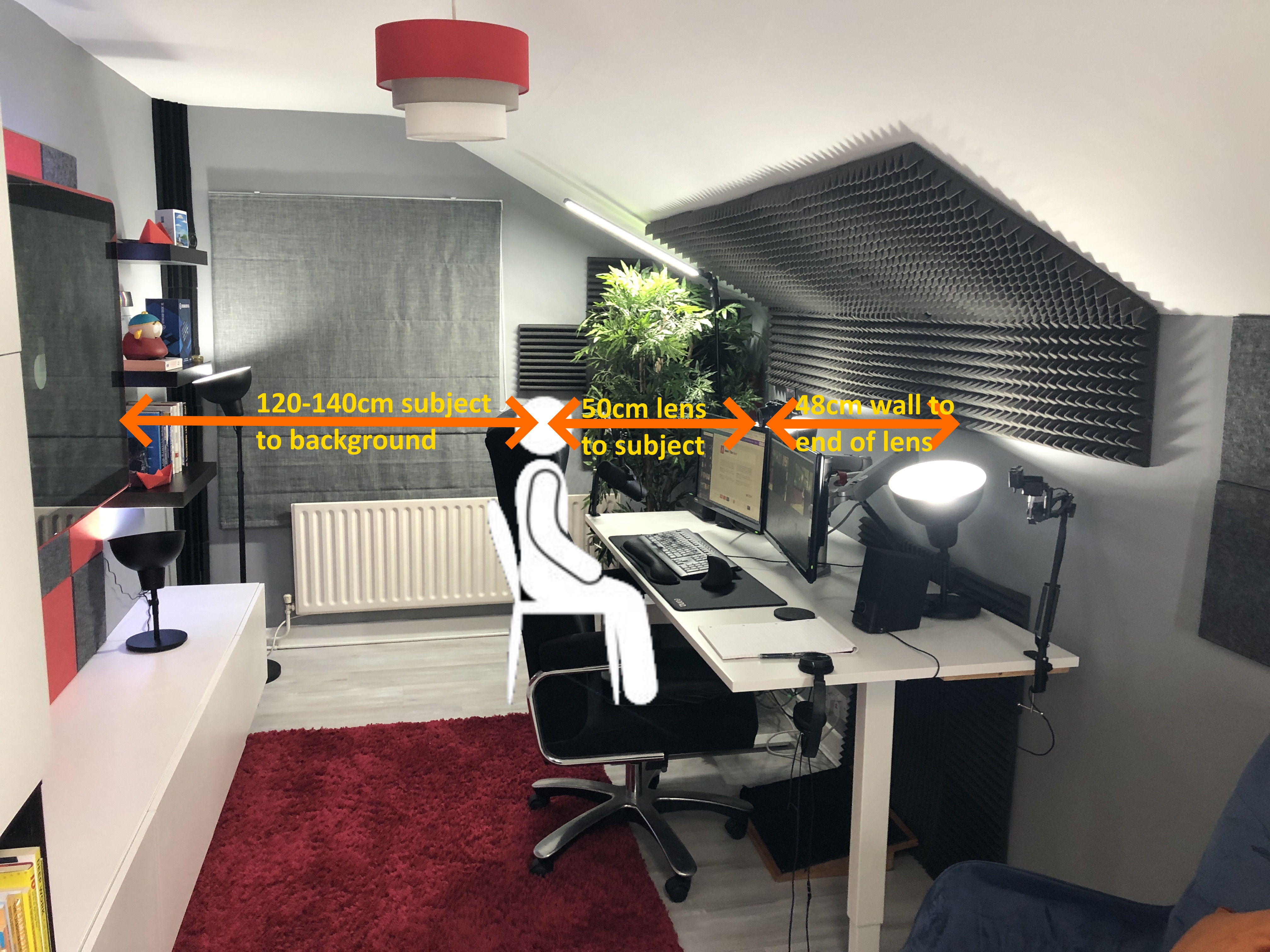
Question for folks who use the Sony E-mount cameras (A6x00 etc). I'm looking for a lens recommendation for webcam usage, with more depth of field bokeh in a shallow room, and wider FOV. I was using a ZV-1 as a webcam - via ATEM mini - and recently got an A6100 to use as well. I'm playing around with the A6100 in the usual webcam above screen position. I'm sitting around 0.8m from the camera with a background around 2.5m behind me. I am getting some depth of field blur, more than on the ZV-1, but not a huge amount, as the background is close. Is it possible to get more bokeh blurring, and a wider FOV with a different lens? Would one of the "fisheye" lenses be suitable? Any recommendations?
TenderSausage 9/16/2021 4:55 PM
@outofbandii I use the a6400 with the kit 16-50 lens. I wish I had one with a little more apperature, say f2.8. I feel like the 3.5 is open enough, but I have to have the camera uncomfortably close without using zoom (which takes the f-stop up).
4:57 PM
I may end up renting a few lenses to see which one works best. I've seen a lot of people using the Sigma 16mm f1.4
outofbandii 9/16/2021 6:21 PM
@TenderSausage I've been recommended that one too
TenderSausage
I may end up renting a few lenses to see which one works best. I've seen a lot of people using the Sigma 16mm f1.4
outofbandii 9/16/2021 7:17 PM
Here's an image showing my setup: https://i.imgur.com/fZm5ldq.jpg

DJboutit 9/18/2021 7:13 AM
Anybody here use Ocam??

Felimancer 9/18/2021 12:10 PM
I used it almost ten years ago to record myself playing Soma for a friend but I mostly just learned how to start/stop and where to find the videos xD
scott 9/20/2021 2:12 AM
@TenderSausage so I don’t really want a delay. So thinking of getting one of the PCIE Elgatos. Think the HD60 pro one would be good? I don’t need 4k.. and I believe the 4k ones need a 4x or 16x pcie slot. And my only open x16 is too close to my gpu for comfort. At least with the HD60 pcie one I can put it in a x1 slot further away. Does that all sound right? Thanks bro
2:13 AM
See what I mean.. if I could even fit one in the x16 slot, it would be suffocating my gpu. So pcie x1 compatibility is a must

2:15 AM
I guess I’m mainly confirming that that pcie elgato will have less delay, compared to the regular hd60s+. As well as the pcie elgato using less bandwidth, since I have so much stuff already plugged in via usb to my pc.
scott 9/20/2021 10:22 AM
According to this site it actually seems I could use the capture cards that require x4 or higher. Just kinda confused cause another side said my mobo didn’t have more than one.

Deleted User 9/20/2021 1:06 PM
I’m new to all of this and have just downloaded Streamlabs OS. I done a quick tester video with the gameplay on screen with my cam in a lil overlay on top etc etc. But when I checked my video the gameplay on screen was blurry as fuuuuuuck. Is this an issue with Streamlabs or could it be my computer?

Hyper Gaming 9/20/2021 6:40 PM
So I like to play cold war/ vanguard and stream. So I try to put two and two together and played with the settings and things, but it doesn't work, idk if this is the right spot for it but if u have any idea how to help and lead me in the direction in which i can get help that would be great. I don't rlly care what i stream in 720, or 1080. GPU: 2060 (Soon to be 3080), CPU: Ryzen 7 3700X, RAM: 32Gb- if u need anything else about pc specs just ask Internet - 446mps downloaded | 11.5/12 uploaded By doesn’t work i mean the stream is losing frames/its choppy (edited)
Hyper Gaming
So I like to play cold war/ vanguard and stream. So I try to put two and two together and played with the settings and things, but it doesn't work, idk if this is the right spot for it but if u have any idea how to help and lead me in the direction in which i can get help that would be great. I don't rlly care what i stream in 720, or 1080. GPU: 2060 (Soon to be 3080), CPU: Ryzen 7 3700X, RAM: 32Gb- if u need anything else about pc specs just ask Internet - 446mps downloaded | 11.5/12 uploaded By doesn’t work i mean the stream is losing frames/its choppy (edited)
scott 9/20/2021 6:52 PM
Cod is pretty intensive. I wouldn’t be surprised at all if a 2060 won’t cut it for streaming whilst playing. Test some other games that are way less gpu intensive and see if it does the same. If it does, your settings (such as bitrate) might need to change. If it streams fine on an easy to run game, your pc ain’t cut out for streaming cod atm. I’m a novice but I think this is somewhat decent advice
Hyper Gaming 9/20/2021 6:53 PM
Thanks for ur help
Hyper Gaming 9/20/2021 7:01 PM
Would you have any reccomendations as for what i should wet my stream settings at? Such as bitrate
TenderSausage 9/20/2021 8:19 PM
@DJboutit No, not since Microsoft made most of the features redundant with various capture tools that are native to Windows.
8:20 PM
@scott, @Deleted User, and @Hyper Gaming I'll comment on these all a bit later today
1
Hyper Gaming 9/20/2021 8:33 PM
ok thanks
TenderSausage 9/20/2021 8:36 PM
Special sorry to you @Hyper Gaming, I'm realizing this is a question you asked over a week ago.
Hyper Gaming 9/20/2021 8:36 PM
thats ok
8:37 PM
i didnt reply to ur question cause i was busy and forgot, we both have busy lives
2
Hyper Gaming
Would you have any reccomendations as for what i should wet my stream settings at? Such as bitrate
scott 9/21/2021 2:55 AM
It’s kind of a case by case basis, and something I’m struggling to hone in as well.
Hyper Gaming 9/21/2021 2:56 AM
Ok, i have been looking at graphics cards and things just cant find one to buy since everything is out of stock
2:56 AM
And i don’t wanna spend $1300 on something when i can get t for a lot less

Schuylergoo 9/21/2021 10:35 PM
I have been streaming guilty gear strive on YouTube and want to make character highlights, but I stream from PlayStation and PlayStation doesn’t save the upload it just goes to YouTube is there anything I can do.

KenZowned 9/22/2021 5:16 AM
For some reason, my camera is all choppy on stream when playing apex legends...any help
scott 9/22/2021 7:47 AM
@TenderSausage think I’m going HD60 pro.. low latency cause pcie, and no fitment issues since it’s compatible with the x1 slot (edited)

hey guys and garls maybe some of you are able to help me out. I just got a second monitor (xg2405 same as my first one) and now i experience massiv fps drops in all game when i use my second screen for obs (even with preview off). I tried a lot f.e. in Warzone i messed with the adv:option.ini turned game mode off and on but nothing seems to have any results. my game dropps down to 70 fps where i had 110 before
Deleted User 9/22/2021 10:06 PM
Anyone uses overlays from stream elements? I tried adding overlay scenes to Streamlabs OBS, when I add a second scene and update browser source, the first scene also changes. I can’t get two different scenes to use two different overlays. How do I fix that problem?

dj 𝕏gam1ng 9/26/2021 7:53 AM
best way to mute spotify on twitch studio while I am streaming
Deleted User
Anyone uses overlays from stream elements? I tried adding overlay scenes to Streamlabs OBS, when I add a second scene and update browser source, the first scene also changes. I can’t get two different scenes to use two different overlays. How do I fix that problem?
dj 𝕏gam1ng 9/26/2021 7:54 AM
I can maybe help youi... I use Streamlabs OBS
TenderSausage 9/27/2021 4:38 PM
I have a meeting from 10 to 11, then it's diving in on these tech issues
4:40 PM
Sorry for the delay @scott @Deleted User @Schuylergoo @KenZowned @OGR @Deleted User @dj 𝕏gam1ng
4:40 PM
Between depression, quitting my job, two kids and a sick wife, it's been a helluva week (edited)
TenderSausage
Between depression, quitting my job, two kids and a sick wife, it's been a helluva week (edited)
@TenderSausage all good bud. we all been there. speaking for myself i got my issues fixed..
 1
1
scott 9/27/2021 4:45 PM
No rush. Do what you gotta do
TenderSausage
Between depression, quitting my job, two kids and a sick wife, it's been a helluva week (edited)
Deleted User 9/28/2021 5:14 PM
No worries. I hope it gets better soon and you don’t have to apologize for caring for yourself

PearseM55 10/2/2021 12:12 AM
Is there anyway to add Spotify as a source so that I can play it during streams but not have it recorded for the VOD?

SaltyMaynard 10/4/2021 5:24 PM
Hey, anyone able to help me out with something? So I'm tryignt o start streaming. PC is decent enough and should be able to handle it just fine, and I pay for 500 mbs interent, down adn up. But the stream itself is extreemly choppy, my bitrate is fluctuationg between 6k and 7k. Is there a way to stablize it?
PearseM55 10/4/2021 6:26 PM
Your bitrate is way to high. I don't think there is any reason to have it that high. Check online for suggested aspect ratios and bitrates

Ikaruga 10/5/2021 11:29 PM
Hello. I wanted to message here and ask if there would be any problems gaming using the OBS preview with a capture card for PS5? I am looking to use my laptop screen as the output for the PS5 when I go traveling and this seemed like the only viable option. I will not be doing any sort of streaming; just purely using the capture card to output to my laptop. I am concerned about any lag though in the preview window. Any input is appreciated.
Deleted User 10/6/2021 11:01 AM
IMPORTANT: the entire source code of the streaming site "Twitch" has been leaked, along with encrypted passwords and user payouts. It is recommended to check your twitch account and enable the Two-Factor Authentication code so that your account and information are safe from any hacking attempts. https://www.theverge.com/2021/10/6/22712250/twitch-hack-leak-data-streamer-revenue-steam-competitor https://www.videogameschronicle.com/news/the-entirety-of-twitch-has-reportedly-been-leaked/ https://www.reddit.com/r/Games/comments/q2h4bh/the_entirety_of_twitch_has_reportedly_been_leaked/
Twitch is reportedly aware of the breach.

Source codes and user payouts among the data released in a 128GB torrent…

0 votes and 205 comments so far on Reddit

11:01 AM
I am really sorry for the spam
11:01 AM
But it's kind of important
11:01 AM
@Misio
11:01 AM
@GrimmmReapa
11:01 AM
You might consider making an announcement for this
Maryo23 10/12/2021 12:10 AM
@TenderSausage I know this is not streaming but when I record with OBS streamlabs I get this why and what can I do about it?

12:13 AM


xRunRiot 10/12/2021 1:13 AM
im a bit new to the server so i am not sure the appropriate place to ask this but how would i go about adding some kind of alert to my stream for someone who subscribes to my patreon?
ZiggyDottedU 10/13/2021 12:26 AM
My friends and I run a podcast about sports. We are looking at branching out and adding other people to our team to do their own shows on sports that we may not be strong in. I was wondering if there is a way I can give them access to stream on our platforms live, like youtube or twitch. I had suggested just the stream key as I felt that this way he wouldnt have the ability to manipulate the actual account. I know this sounds super risky, so I was wondering if there is a good alternative to this as a solution.

wasabi 10/17/2021 2:09 PM
Hello! I have two old mid-range Android phones that I want to re-purpose as steaming cameras. I can already use them as input sources in OBS. My problem is more mechanical in nature. I need to have an overhead camera that can look straight down onto my workbench, and for that I would need some kind of stand
2:10 PM
Is there anyone who have done something similar? What did you use? (edited)
TenderSausage 10/17/2021 6:02 PM
@wasabi I use a wall-mounted Heil PL2T to mount my overhead cameras. I also bought a set of thread converters, so I can mount anything I want to it.
wasabi 10/17/2021 6:24 PM
Hm.. this looks like the Røde microphone arm that I'm using for my microphone..
6:25 PM
@TenderSausage I suppose it Is wall-mounted to avoid transferring vibrations from your desk to your camera - correct?
TenderSausage 10/17/2021 6:26 PM
Yeah, that’s one big reason. Yeah riginally it was by mic mount, but I’ve made a lot of changes and it makes an amazing overhead mount for anything.
6:27 PM

6:27 PM
The channel for hiding the cables is convenient.
6:28 PM
Here you can see it above where I sit

6:32 PM
Having the overhead on this mount makes it really convenient if I want to get closer in on something, I can just grab the camera and lower it.
TenderSausage 10/17/2021 6:39 PM
@ZiggyDottedU This is kind of a tough issue. My first recommendation would be to not share your stream key or account details with anyone outside your immediate circle of trust. Aside from that, you mean to have their channel content simulcast to your channel to extend reach? It's my assumption that both of these channels will be live at the same time?
Maryo23
@TenderSausage I know this is not streaming but when I record with OBS streamlabs I get this why and what can I do about it?
TenderSausage 10/17/2021 6:40 PM
Are you running SLOBS as an Administrator?
xRunRiot
im a bit new to the server so i am not sure the appropriate place to ask this but how would i go about adding some kind of alert to my stream for someone who subscribes to my patreon?
TenderSausage 10/17/2021 6:41 PM
Which software are you using to produce your stream, and to which platform are you streaming?
Ikaruga
Hello. I wanted to message here and ask if there would be any problems gaming using the OBS preview with a capture card for PS5? I am looking to use my laptop screen as the output for the PS5 when I go traveling and this seemed like the only viable option. I will not be doing any sort of streaming; just purely using the capture card to output to my laptop. I am concerned about any lag though in the preview window. Any input is appreciated.
TenderSausage 10/17/2021 6:42 PM
There will be some delay, but depending on the capture card and the laptop, it may be impercievable.
SaltyMaynard
Hey, anyone able to help me out with something? So I'm tryignt o start streaming. PC is decent enough and should be able to handle it just fine, and I pay for 500 mbs interent, down adn up. But the stream itself is extreemly choppy, my bitrate is fluctuationg between 6k and 7k. Is there a way to stablize it?
TenderSausage 10/17/2021 6:46 PM
I'm tracking down an issue on my end like this, where all of my settings are "recommended" but I'm still seeing some weird graphical artifacts. I'm going to be doing some testing today and I'll let you know if I find anything significant. With that said, @PearseM55 might not be wrong. If you're streaming to Twitch, the video bitrate cap is 6,000kbps, so making sure your encoder settings are right might be a good first step. Try CBR at 6,000kbps and see how that looks. If you're streaming to YouTube, this shouldn't be an issue because, IIRC, 10,000kbps is their cap, but I don't remember exactly and I'm too lazy to look right now.
OGR
hey guys and garls maybe some of you are able to help me out. I just got a second monitor (xg2405 same as my first one) and now i experience massiv fps drops in all game when i use my second screen for obs (even with preview off). I tried a lot f.e. in Warzone i messed with the adv:option.ini turned game mode off and on but nothing seems to have any results. my game dropps down to 70 fps where i had 110 before
TenderSausage 10/17/2021 6:57 PM
This issue only happens while the second monitor is connected, or is it related to when you're streaming?
scott
@TenderSausage think I’m going HD60 pro.. low latency cause pcie, and no fitment issues since it’s compatible with the x1 slot (edited)
TenderSausage 10/17/2021 6:58 PM
Did you end up getting this installed? I have one but have a second 4x slot.
KenZowned
For some reason, my camera is all choppy on stream when playing apex legends...any help
TenderSausage 10/17/2021 6:59 PM
There are a lot of reasons it could be, but my guess is probably encoder overload or something. Could you grab a recent log from OBS and put it up here if this is still an issue? (edited)
Hyper Gaming
And i don’t wanna spend $1300 on something when i can get t for a lot less
TenderSausage 10/17/2021 7:00 PM
Did you end up getting a 30-series card?
Schuylergoo
I have been streaming guilty gear strive on YouTube and want to make character highlights, but I stream from PlayStation and PlayStation doesn’t save the upload it just goes to YouTube is there anything I can do.
TenderSausage 10/17/2021 7:03 PM
Playstation Share Factory Studio is the official Sony app for this kind of thing. You can always download the videos from YouTube and edit them on your computer or phone and edit using an editor.
TenderSausage
Which software are you using to produce your stream, and to which platform are you streaming?
xRunRiot 10/17/2021 7:04 PM
OBS to twitch
Schuylergoo 10/17/2021 7:04 PM
Thanks, this just scared me I had no clue why I had been pinged about playstion on discord lol
TenderSausage 10/17/2021 7:07 PM
Sorry to alarm you 
xRunRiot
OBS to twitch
TenderSausage 10/17/2021 7:11 PM
I know it's really easy with Streamlabs, but I refuse to use SLOBS (mostly my own stubbornness). I'll look into this and see what options are out there.
xRunRiot 10/17/2021 7:13 PM
^ thank you, SLOBS has not been kind to me so I just switched to regular OBS
TenderSausage 10/17/2021 7:13 PM
^^^^ That's my story, too
TenderSausage
Did you end up getting a 30-series card?
Hyper Gaming 10/17/2021 7:51 PM
not yet, i have ben watching the card tho, i want to see whats the lowest price it will go,
7:51 PM
so far its like $820 or something
7:51 PM
which is still crazy high
TenderSausage 10/17/2021 8:14 PM
I picked up an MSI Ventus 3080 10GB on Thursday for $1,100. They're out there.
Hyper Gaming 10/17/2021 8:25 PM
from where?

Hyper Gaming 10/17/2021 8:43 PM
nice

Sourc13 10/19/2021 12:01 PM
what's some of your favorite microphones in the 100-200$ range, for all around use, mostly for voice, but also for drums and other instruments? i'm using it for a lot of music production on ableton
12:01 PM
but also streaming a lot
TenderSausage 10/19/2021 4:44 PM
@Sourc13 Been a drummer for 20 years. Do you plan on using the live drum track, or are you just taking a rough cut to be recreated in the DAW, like using a MIDI instrument? (edited)
4:47 PM
Also, I'm assuming you're looking for an XLR, but can you confirm that? It might also help to know, if you already have one, which interface you're using.
Sourc13
what's some of your favorite microphones in the 100-200$ range, for all around use, mostly for voice, but also for drums and other instruments? i'm using it for a lot of music production on ableton
SaltyMaynard 10/19/2021 5:41 PM
I'd love to jump on this conversation. Wife wants to get me a mic for my birthday. Strictly streaming voice, was looking at a Blue Yeti but seems like there are a lot of cable issues? Same price range as Sourc3. So wasn't sure, any suggestions?
Sourc13 10/19/2021 5:43 PM
i'm using it with XLR to a focusrite 2i4 gen 2, it could be a mix of both but I'm guessing I would loosely record the drums then edit those either sampling it down or warping it in ableton, i won't always be recording drums though my friends just have a djembe and a drum set
5:44 PM
I couldn't get a full drum set with 1 mic but I could grab some samples mainly or record a groove from 1 drum
5:46 PM
a lot of people said just go with the SM58 but i was also looking at sE electronics v7 and shure beta 56a
5:46 PM
the shure beta 56a i probably won't get but something about a drum mic intrigues me
5:47 PM
SM58 is by far the most suggested mic so far
5:47 PM
they said it's so durable you can use it as a weapon
TenderSausage 10/19/2021 5:56 PM
The SM58 is the most versatile mic I've used, and it's extremely durable for live stuff.
5:59 PM
The Beta 56A is decent, but for studio stuff it's kind of a limited scope mic IMO. I'd mic a cab or snare with an SM57 before a Beta 56A.
6:04 PM
An SM57 will handle the SPL of a bass drum, too.
SaltyMaynard 10/19/2021 6:13 PM
@TenderSausage would you recommend a SM58 for general streaming? btw thanks for your help earlier with the bitrate issue I had. Got everything sorted out and it's much smoother.
TenderSausage 10/19/2021 6:42 PM
With @Sourc13's situation, since they have an interface and want to span both streaming and musical pursuits, I'd recommend an SM58 for vocals/general use and streaming, and the SM57 for instruments. @SaltyMaynard, if all of that lines up for you, then I'd go that route. If you don't have instruments, don't have an XLR interface, or just want a simple microphone like the Yeti, I have better recommendations in the sub-$200 price point.
SaltyMaynard 10/19/2021 6:44 PM
I literally just have a mic that goes into a USB port in my tower, so something simple would be great honestly. At least for where I am at now, I can always upgrade later.
TenderSausage 10/19/2021 7:23 PM
If you are leaning toward Logitech/Blue, then I recommend getting a Yeti X Refurb from them directly

7:23 PM
Blue offers premium USB and XLR microphones, and audiophile headphones for recording, podcasting, gaming, streaming, YouTube, and more.
7:28 PM
If you're open to other brands, Elgato's Wave:3 is a great little microphone for $150. The pop filter accessory is $30 extra, but it does help with plosives. Elgato's Wave Link software is a lot like VoiceMeeter, giving you many channels that can be routed to headphones or to stream, so you don't need VoiceMeeter at all in many scenarios. (edited)
TenderSausage
If you are leaning toward Logitech/Blue, then I recommend getting a Yeti X Refurb from them directly
SaltyMaynard 10/19/2021 7:32 PM
Why not get a Yeti X from Amazon? seems like a new one is exactly the same price?
TenderSausage 10/19/2021 7:33 PM
Wow, it's come down. Yeah, do that.
7:34 PM
I mean, unless you hate Mr. Beezbos
SaltyMaynard 10/19/2021 7:34 PM
Awesome, will do. Thanks again, you always popping in here and giving advice. What kind of content do you create? wouuld love to give some follows or whatever for the advice
TenderSausage 10/19/2021 7:35 PM
I'm dealing with some stuff, so haven't really gotten started on what I want to do, but the idea was charity variety gaming. (edited)
SaltyMaynard 10/19/2021 7:35 PM
Gotcha, well again your advice is always appreciated!
TenderSausage 10/19/2021 7:36 PM
No worries, anytime
dj 𝕏gam1ng 10/22/2021 1:13 PM
Hey guys I am gonna chime in. I game on Twitch. Have a PC, and both next gen consoles. I work a ton. I went from Xbox1X to what I have now. I say this because I have a pretty decent streaming setup and willing to help with any questions. No follows or subs needed. I have a full time job, so I tell people NOT to give me there money. Don’t need it. Would rather have someone that cares about me more than anything. Hope you guys have a good weekend. Gotta sleep for work. Have to love the night shift
 1
1

Siggel 10/23/2021 1:34 PM
Hey guys, new here. I'm currently having some issues with my stream. I'm streaming on a i5 10600k, 2070 super, 16gb 3200mhz. And I'm really struggling streaming 60fps 1080p with NVENC. I'm running a couple of extra programs in the background such as lumia stream, touch portal and some elgato stuff. So my question is what is it that's holding me back? CPU, RAM or GPU? Any suggestions would be much appriciated
TenderSausage 10/23/2021 2:46 PM
@Siggel Are you also playing a game while experiencing issues?
Siggel 10/23/2021 2:47 PM
Yes that's correct. That's when I experience the problems
TenderSausage 10/23/2021 2:47 PM
I'm reviewing your most recent stream. Is it evident on that session?
Siggel 10/23/2021 2:50 PM
check the 2nd to last one since I did a stream restart to lower the FPS to 30
2:50 PM
the 2nd to last one is when im running medium settings on 60fps. and im getting fps drops to around 40-60 fps ingame
Siggel 10/23/2021 2:54 PM
in that broadcast im running the stream on 30fps instead of 60 and lowered all my settings to low
2:55 PM
https://www.twitch.tv/videos/1183894748 Here im running it on 60fps but I can't get more than 50-60 out ingame
2:55 PM
When I want to be around 120
TenderSausage 10/23/2021 2:58 PM
Okay, let me rephrase the issue to make sure I understand it. When playing a game, you're achieving in-game performance of 120FPS at 1080p. While streaming, you're experiencing a performance drop of approx. 50% and would like to understand why that might be?
Siggel 10/23/2021 3:02 PM
While not streaming im at around 140 fps ingame, but yes, that's correct
3:04 PM
I get that I might get some FPS loss due to the fact that I'm streaming. But the FPS drop is a bit much while im streaming to be playable when it comes to shooter games
3:10 PM
When I changed the FPS output in OBS to 30FPS and lowered the graphics ingame it was working well. But I really don't want to limit my FPS output to 30FPS.
TenderSausage 10/23/2021 3:13 PM
I need to make a video about this subject, because it's REALLY common
3:15 PM
The issue is too much data going to the encoder, I feel
3:15 PM
I'm going to try to summarize, but this is my theory. Give me a minute while I type it up.
Siggel 10/23/2021 3:18 PM
sure thing
TenderSausage 10/23/2021 3:25 PM
Also, my summary will have some basics in it, it's more for everyone else than you. I can tell you're competent. I just didn't want you to feel like I was being rude by overexplaining stuff
Siggel 10/23/2021 3:26 PM
Yeah no worries
TenderSausage 10/23/2021 3:47 PM
So here's my take: According to many reputable guides on the internet, there are some "ideal settings" that you should be using to stream to Twitch. These settings are fine for Affiliates and Partners but aren't ideal for those of us still on the path. Why? Well, there are two big reasons that I see: 1. Transcoding. This technology lets viewers select a different stream quality according to what their device/internet connection will allow. Twitch guarantees transcoding to Affiliates and Partners and only offers it as available to the general public. So what does this have to do with anything? I wanted to talk about this before talking about performance because there is a legitimate case to be made that setting your stream quality too high will stifle growth. But more on that later. 2. Bandwidth. Bandwidth is the keyword of choice for streaming, because there are so many systems that we working with and each has its own bandwidth considerations. For example, your upload speed from your ISP is a key bandwidth consideration for streaming. For Twitch, the maximum upload bandwidth that their ingest servers allow is 6,000kbps, according to their documentation. So as long as you have internet upload speeds of 6Mbps or better, you're good, right? No, not quite. Remember when I said "many systems?" Yeah, we gotta think outside the lines here and understand a few of them, like the encoder its bandwidth constraints. One issue I see from many new streamers is jacking the settings to the sky in OBS and then getting performance issues. The guides are not very clear on how to set up the encoder, and I posit that the guides that are out there do a poor job of explaining why. I want to break down why that is. For every second of video rendered, there are a certain number of pixels. Depending on a few settings, this number can change drastically. Example: One second of 1280x720 at 30FPS (720p30) has 27,648,000 pixels. Similarly, one second of 1920x1080 at 60FPS (1080p60) has 124,416,000, or 4.5x more than 720p30, every second. To recap, you're asking the encoder to capture and encode that many pixels each second. This doesn't factor in audio that also has to be encoded, but we'll ignore that for the most part (just know it's in there, too). So what does this mean as far as bandwidth? Well, from a GPU standpoint, it could mean a decrease in in-game performance because NVENC is consuming resources. As well, depending on how hard you tell the encoder to work, that will also affect your in-game performance. This is all settings in OBS, like Psycho Visual Tuning, B-Frames, and your Bitrate setting. (edited)
Siggel 10/23/2021 3:52 PM
So if I'm understanding you correctly, you think that it's my GPU that's getting overloaded with the NVENC encoder which ultimately leads to me having low FPS ingame while my stream is running?
TenderSausage 10/23/2021 3:52 PM
Yes
3:53 PM
There's a lot more to this though
3:53 PM
I have a part 2
Siggel 10/23/2021 3:54 PM
alright cheers
TenderSausage
So here's my take: According to many reputable guides on the internet, there are some "ideal settings" that you should be using to stream to Twitch. These settings are fine for Affiliates and Partners but aren't ideal for those of us still on the path. Why? Well, there are two big reasons that I see: 1. Transcoding. This technology lets viewers select a different stream quality according to what their device/internet connection will allow. Twitch guarantees transcoding to Affiliates and Partners and only offers it as available to the general public. So what does this have to do with anything? I wanted to talk about this before talking about performance because there is a legitimate case to be made that setting your stream quality too high will stifle growth. But more on that later. 2. Bandwidth. Bandwidth is the keyword of choice for streaming, because there are so many systems that we working with and each has its own bandwidth considerations. For example, your upload speed from your ISP is a key bandwidth consideration for streaming. For Twitch, the maximum upload bandwidth that their ingest servers allow is 6,000kbps, according to their documentation. So as long as you have internet upload speeds of 6Mbps or better, you're good, right? No, not quite. Remember when I said "many systems?" Yeah, we gotta think outside the lines here and understand a few of them, like the encoder its bandwidth constraints. One issue I see from many new streamers is jacking the settings to the sky in OBS and then getting performance issues. The guides are not very clear on how to set up the encoder, and I posit that the guides that are out there do a poor job of explaining why. I want to break down why that is. For every second of video rendered, there are a certain number of pixels. Depending on a few settings, this number can change drastically. Example: One second of 1280x720 at 30FPS (720p30) has 27,648,000 pixels. Similarly, one second of 1920x1080 at 60FPS (1080p60) has 124,416,000, or 4.5x more than 720p30, every second. To recap, you're asking the encoder to capture and encode that many pixels each second. This doesn't factor in audio that also has to be encoded, but we'll ignore that for the most part (just know it's in there, too). So what does this mean as far as bandwidth? Well, from a GPU standpoint, it could mean a decrease in in-game performance because NVENC is consuming resources. As well, depending on how hard you tell the encoder to work, that will also affect your in-game performance. This is all settings in OBS, like Psycho Visual Tuning, B-Frames, and your Bitrate setting. (edited)
TenderSausage 10/23/2021 5:19 PM
Example 1: You have an image loaded up as your current scene in OBS, and that is it (think your "BRB" screen). OBS sends this data to your encoder to be rendered and streamed to Twitch. Because the scene has mostly non-dynamic content, the encoder doesn't have to work as hard because you're sending the same data to the encoder frame after frame. Example 2: You have a scene loaded up that includes rich game content, a few web sources, a webcam source, and maybe a few more things, you know, a typical stream. Not only does each source need to be encoded, but the composite output will need to refresh that many times per second in the output encoder. So, more sources (and more demanding sources) will require more PC resources, usually CPU and GPU consumption. What can you do to change this? My recommendation is to remember each sub-system and maximize them based on Twitch's limitation of 6Mbps. Time for maths and stuff. To start, let's set up the Video tab. We'll check the Canvas, Output, downscale filter, and the FPS value settings, which will tell the encoder what to stream. Canvas Resolution: Based on Display. Just match what you have set up in Windows or in-game. Output Resolution: A resolution with a height no more than 900px, maintaining the same aspect ratio as your Canvas. Example 1: Base Canvas Resolution: 1920x1080 (16:9, 2.0MP/frame) Output Resolution: 1280x720 (16:9, 0.9MP/frame) Example 2: Base Canvas Resolution: 3840x2160 (16:9, 8.3MP/frame) Output Resolution: 1536x864 (16:9, 1.3MP/frame) Downscale Filter: Bicubic. There are a lot of guides that suggest Lanczos, but for the downsampled video, I feel like it introduces artifacts that I don't like, and bicubic has always worked well enough, given our bandwidth cap. FPS Value: Start at 30FPS. In all likelihood, 30FPS will be the sweet spot for a long time. Putting it together and run the numbers using 10-bit pixel depth, we find that our video bandwidth requirements are 2,900Kbps for example 1 and 4,100kbps for example 2. Remember when I talked about transcoding? It becomes essential to consider it here because whatever we set in the settings here sets the MINIMUM requirements for viewing your stream without transcoding it. For example, if you have a lot of viewers on mobile or who have slower ISP connections, mandating a 1080p60 stream for all viewers may be prohibitive to them, and they won't view or may have a sub-par experience because you're essentially requiring a 6Mbit connection to view your stream. Until Affiliate/Partner, that could be a huge impediment. With example 1, we're setting that mark much lower, around the 3Mbps mark. (edited)
5:22 PM
Stay tuned for part 3
TenderSausage 10/23/2021 5:41 PM
Now, with the stream encoder parameters set, it's time to start stuffing that encoder bandwidth. This is where we start to fill up the encoder with things to actually do, and is more about understanding your content and adjusting the Output tab in OBS to match what you need than anything. I'll go through OBS's Output tab top to bottom. These settings will be for Nvidia video card owners with any CPU, running OBS on Windows. First, make sure the screen is in Advanced Output Mode. We want to see all of the settings. Audio Track: Set this to 1 in almost all scenarios. You'll know if you need to change it. Rescale Output: Unchecked. We're doing our scaling on the final output, so it makes no sense to use the setting here. Rate Control: VBR. I know I'm gonna get hate for this, but I believe VBR is the best option here. Why? Because it will allow the encoder to ramp down during times when your content is not very dynamic, but will give you the headroom to push a really high-quality stream as well. Bitrate: 4000 Kbps. Start here and see what it looks like. Max Bitrate: 6000 Kbps. This sill limit the output to match Twitch's bandwitch limit. Keyframes: 2. This setting basically tells OBS when to send a full frame of data in seconds. Setting it to 2 means that every 60 frame, the frame will be 100% redrawn instead of only drawing the pixels that change. Using 2 seconds will keep the video nice and tight, but it will require more GPU resources. If your video feels laggy, this can be increased to 3, 4, up to 5 seconds. Preset: Performance. Start with this one, as it tells the encoder to spend some time on stuff, but not a lot of time. Profile: Main. Being that this isn't a dedicated streaming rig and there are other processes going on besides stream encoding, set this to main. Look-ahead: Unchecked. This consumes a lot of GPU resources and is actually visually bad for high-action games. Psycho Visual Tuning: Unchecked. This setting will increase perceived visual quality, but it takes up GPU resources and I don't think it's worth the resource cost. GPU: 0 unless told otherwise. Max B-frames: It doesn't matter because Look-Ahead is turned off, but if you need a number, put 8 in there. (edited)
5:41 PM
@Siggel I hope that helps
Felimancer 10/23/2021 5:44 PM
As someone else who struggles with laggy streams sometimes I also appreciate this :3 maybe it should be pinned? Also, not sure if this is accurate but myself and most streamers I know are affiliate and apparently during heavy streaming times we can also lose our video settings for viewers to change so its something to bear in mind at this level too?
TenderSausage 10/23/2021 5:44 PM
I believe that's correct
5:44 PM
Partners are guaranteed, next goes to Affiliates
5:44 PM
If all transcode servers are full, then they will queue affiliates
5:45 PM
Ideally I want to make a video about this, but I want to collect some more data to see if my assumptions are correct.
Felimancer 10/23/2021 5:46 PM
Totally get wanting to make sure ❤️ having it written out is also helpful for those of us with no short term memory XD
TenderSausage 10/23/2021 5:48 PM
The thing I'm noticing about guides on this is that they just kind of gloss over why certain settings are what they are, and what you need to alter for certain scenarios.
5:49 PM
I can think of so many scenarios that it's hard to create a single guide for such a large topic
1

Tihson 10/23/2021 9:57 PM
One thing I found both from personally fighting with pixelated/leggy streams and reviewing countless guides was that CPU encoding (if you have the resources to push it) tended to be better than NVENC encoding. I have an i9 9900k OC, 2070 Super, and 32GB RAM (single system streaming) and the NVENC encoding was constantly lagging and artifacting. My CPU was only sitting at 10-20% utilization during games so I decided to try x264 encoding to push the CPU instead of GPU. Since I made the switch, I have been running the fast preset going from 1440p/165hz source to 1600x900 stream with constant 60FPS and barely any stutters. Going to try 720p to see if it really smooths things out and maybe try Medium render preset. It seems like guides still go back and forth between x264 and NVENC encoding being the superior choice, but seems like it depends on system performance from person to person. Might be helpful if someone is running something like a Ryzen 7/9 or newer Intel i7/i9 with an older GPU since CPUs are easier to get than GPUs right now
Felimancer 10/23/2021 10:35 PM
Honestly I also switched back to the CPU encoder, mostly because of the current GPU problems - I was able to upgrade my CPU but not my GPU so NVENC seems to end up the worse choice
Tihson
One thing I found both from personally fighting with pixelated/leggy streams and reviewing countless guides was that CPU encoding (if you have the resources to push it) tended to be better than NVENC encoding. I have an i9 9900k OC, 2070 Super, and 32GB RAM (single system streaming) and the NVENC encoding was constantly lagging and artifacting. My CPU was only sitting at 10-20% utilization during games so I decided to try x264 encoding to push the CPU instead of GPU. Since I made the switch, I have been running the fast preset going from 1440p/165hz source to 1600x900 stream with constant 60FPS and barely any stutters. Going to try 720p to see if it really smooths things out and maybe try Medium render preset. It seems like guides still go back and forth between x264 and NVENC encoding being the superior choice, but seems like it depends on system performance from person to person. Might be helpful if someone is running something like a Ryzen 7/9 or newer Intel i7/i9 with an older GPU since CPUs are easier to get than GPUs right now
TenderSausage 10/23/2021 10:45 PM
This is another dynamic, because games utilize system resources differently and you have to know which encoder is better. Yuck.
TenderSausage
This is another dynamic, because games utilize system resources differently and you have to know which encoder is better. Yuck.
Tihson 10/23/2021 10:49 PM
What was really interesting is that I play a good amount of Escape from Tarkov and the game is notoriously CPU-intesive, but streamed badly when using the GPU for NVENC encoding. I switched to CPU for x264 and even with the increased CPU load with the game, the stream ran better. Thermals on the GPU are fine, so it wasn't throttling, the system just decided it wanted the CPU to handle the heavy lifting for whatever reason. Beats me, but I will take it
TenderSausage 10/23/2021 10:50 PM
I also play Tarkov! But who doesn’t anymore, amirite?
Tihson 10/24/2021 1:09 AM
Pretty much, although it has slowed down a bit lately. I tend to die more than escape, but I still enjoy it

question, if anyone is able to provide an answer to a very frustrating issue. I'm having some issues streaming in that for some reason although streamlabs OBS says I'm streaming, Twitch will show me as offline (even though Twitch SAYS I'm online, the feed will say offline). The only way I learn of the issue is one of the viewers tells me. Usually it ends up resolving itself but I have no idea why. I have checked on Twitch inspector and see no unstable events. If I try to get into my own stream via my phone, it'll go into this eternal buffering state. I've also tried refreshing my stream on my chrome browser and after several times my stream came back. However, although it remained live for awhile, when I tested it again by refreshing it, it once again was saying I was offline.
I should also add, it seems like this happens with a lot of my streams, even though they for the most part won't show any issues with stability, and pretty consistent performance.

Schatzy23 10/31/2021 3:32 PM
Question: Dual PC streaming setup with old gaming PC as my streaming PC using Elgato HD60 Pro. New gaming PC is hooked up to a nice monitor that does the resolution of 2560x1440. Ever since I reorganized my setup and moved things around, every game I load up switches the resolution of the game to 1920x1080. I've been in and out of NVIDIA Control panel tweaking the settings every which way, but nothing seems to work. Every game keeps reverting back to a 1920x1080 size (or lower) even though my set up is capable of running at a much high resolution. Anyone have any recommendations on what I might be missing? I swear everything was working just fine before I moved stuff around.
TenderSausage 10/31/2021 3:55 PM
@Schatzy23 The maximum supported resolution on the HD60 PRO is 1920x1080. If you're mirroring the display, Windows will revert to the lowest possible resolution among available display devices to mirror.
3:56 PM
So what you're describing is how it should work.
3:57 PM
@Avi Sorry, I don't have a good answer for that. It sounds to me like it could be an issue with Twitch. Are you an affiliate?
TenderSausage
@Schatzy23 The maximum supported resolution on the HD60 PRO is 1920x1080. If you're mirroring the display, Windows will revert to the lowest possible resolution among available display devices to mirror.
Schatzy23 10/31/2021 4:01 PM
Is there a way to have it stream out at 1080 but still leave the gaming PC running on the higher resolution so I can still take advantage of the high performance of the PC?
TenderSausage 10/31/2021 4:01 PM
No, that requires transcoding
4:02 PM
You could get the 4K60 and that would fix the issue.
4:03 PM
A state of the art capture solution that takes production quality to the extreme, 4K60 Pro supports crystal clear 4K resolution at 60 fps, and vibrant HDR10 imaging.

Schatzy23 10/31/2021 4:03 PM
@TenderSausage Thanks for the info!
TenderSausage 10/31/2021 4:04 PM
No worries
@TenderSausage No, not a affiliate. Do you think that has something to do with it?
TenderSausage 10/31/2021 4:14 PM
Twitch doesn't do a great job of supporting small streamers. This is one thing I've seen so many times online, and there just isn't a good reason other than Twitch doesn't care.
4:14 PM
There's not a lot of incentive for them to promote streamers that make them no money, other than maybe not hearing them complain.
Right, but its also kinda tough to build any following when you show up as offline when streaming, ha. I’ve had people join and leave over this issue. Ppl I actually direct to the stream can’t seem to access it. Sometimes I can restart the stream to fix the issue, but not always.
TenderSausage 10/31/2021 4:17 PM
That wasn't meant to say I think you're complaining, it's just not a huge priority for Twitch to make sure that non-affiliate streamers get what the platform offers, because they need to focus on the affiliates and partners (who make up the larger part of their revenue).
Maybe I should try YouTube for awhile and see if that’s a little bit better
TenderSausage 10/31/2021 4:18 PM
Discoverability is best on YouTube, but the streaming community loves Twitch
Although I guess I’m already streaming to both, maybe just focus in on YouTube more for now
4:22 PM
Nothing else comes to mind beyond Twitch basically throttling my stream. Any settings that would cause this? Its weird, because Twitch still records the VOD, even when this is happening
TenderSausage 10/31/2021 4:23 PM
Are you using any integrations, webhooks, or anything like that?
4:23 PM
Also, which app are you using to stream? OBS Studio, Streamlabs OBS, etc.
I’m using Streamlabs OBS. Nothing really complicated otherwise. Haven’t done anything with webhooks or integrations
TenderSausage 10/31/2021 4:28 PM
You could try streaming from OBS to see if it's a client issue
4:29 PM
It would give you more data, either way. If it works with OBS, we can troubleshoot SLOBS. If it doesn't work in OBS, we're closer to ruling out a client-side cause.

Penguen 11/1/2021 7:47 AM
Guys, one of my friends are streaming. He is streaming 1080p30, high bitrate (idk the actual bitrate but stream is good). He using OBS and NVENC as encoder. He have a 9600K (6c/6t) and RTX 2060. He is playing LoL most of the time but his FPS is below average for such good computer. Is it because of 9600K? He is using spotify, obs, google etc on background.
7:49 AM
He is playing LoL. FPS should be around 150-200, but he getting 120 most of the time. He said it happens only when he is streaming. But he is using NVENC for encoding. What he should do? Should he buy a 2nd pc with like i3-10100F or upgrade his PC to something like 3700x? (edited)
Penguen 11/1/2021 3:09 PM
?
TenderSausage 11/1/2021 5:32 PM
@Penguen Try capping the FPS in league. You have two processes competing for resources on the 2060, so if you limit the top end of League's resource draw, you ensure a certain amount is allocated to the encoder. (edited)
TenderSausage
@Penguen Try capping the FPS in league. You have two processes competing for resources on the 2060, so if you limit the top end of League's resource draw, you ensure a certain amount is allocated to the encoder. (edited)
Penguen 11/1/2021 5:57 PM
dude he is getting lower than 144 and he have a 144 fps monit
TenderSausage 11/1/2021 5:57 PM
Dude, I don't code the game, and I didn't build that PC
Penguen 11/1/2021 5:57 PM
the problem is, even 5-6 years old computers capable of 100 fps at league
TenderSausage 11/1/2021 5:57 PM
I just offer solutions
Penguen 11/1/2021 5:58 PM
why he is getting 100 fps with 9600k and what should he do? (edited)
TenderSausage 11/1/2021 5:58 PM
Don't "dude" someone trying to help.
5:58 PM
It's annoying
5:58 PM
Now...
5:58 PM
What all have they tried?
5:58 PM
Do they get better performance on the x264 encoder?
Penguen 11/1/2021 5:59 PM
i dont think so, because league is cpu intensive rather than gpu
TenderSausage 11/1/2021 5:59 PM
Have you tried it?
Penguen 11/1/2021 5:59 PM
so x264 would heavy on cpu
5:59 PM
no
TenderSausage 11/1/2021 5:59 PM
That is one option, to try and take any use of the GPU off the table.
6:00 PM
What other settings are they using in OBS? Psycho tuning? Anything like that? Can I get a screenshot of the settings?
Penguen 11/1/2021 6:00 PM
ok i will want a ss from him
TenderSausage 11/1/2021 6:01 PM
I'd like to see the Video and Output tabs
6:01 PM
in Advanced mode for the output tab (edited)
Penguen 11/1/2021 6:01 PM
ok
TenderSausage 11/1/2021 6:01 PM
That will give us a really good idea of what's going on
Penguen 11/1/2021 6:01 PM
but i don't believe x264 would work well 
TenderSausage 11/1/2021 6:01 PM
It's possible it won't
6:01 PM
But I've seen weirder things
6:02 PM
I know certain games you simply CAN'T use certain encoders
6:02 PM
Genshin Impact is one that is really picky about the encoder, for some reason. League and COD are somewhat picky.
Penguen 11/1/2021 6:03 PM
i literally don't know anything about streaming but i saw him getting really low fps
TenderSausage 11/1/2021 6:04 PM
No worries
Penguen 11/1/2021 6:04 PM
and it is annoying cus 9600k is still a beast
TenderSausage 11/1/2021 6:04 PM
Yeah, it's a solid CPU
Penguen 11/1/2021 6:04 PM
he thinks about buying 2nd pc or 3700x but they cost too much
TenderSausage 11/1/2021 6:04 PM
Do they have more than 16GB RAM?
Penguen 11/1/2021 6:04 PM
i believe it is 16
TenderSausage 11/1/2021 6:05 PM
How about storage? Are they on an at least an SSD? Maybe an M.2? (edited)
Penguen 11/1/2021 6:05 PM
he is using spotify chrome at background so 6c-6t might be the problem but idk
6:05 PM
no, sata ssd 240 gb
TenderSausage 11/1/2021 6:05 PM
There are a lot of optimizations we can make before jumping into a second rig, though a second rig changes the game quite a bit.
Penguen 11/1/2021 6:06 PM
i suspected from ssd first because it was full and he was recording at the same time. And he had stutters which seems like because of ssd
TenderSausage 11/1/2021 6:06 PM
With a 9600k, the chipset should support M.2. A small M.2 (120GB is fine) for the OS and critical apps.
Penguen 11/1/2021 6:07 PM
but since league isn't a open world 100 gb game, idk about ssd. it shouldn't bottleneck
6:07 PM
yep i preffered him sx8100. he have a msi z370 mobo
TenderSausage 11/1/2021 6:07 PM
Wait... Hold on a second...
6:07 PM
I want to understand something
6:08 PM
They're playing, streaming to Twitch, and recording locally, correct?
Penguen 11/1/2021 6:08 PM
not twitch. he is banned from twitch, streaming to a app called nonolive
6:08 PM
and yes, correct
TenderSausage 11/1/2021 6:08 PM
So there are actually two encoders running
Penguen 11/1/2021 6:08 PM
also lots of background tasks as i said
TenderSausage 11/1/2021 6:08 PM
What are the encoder settings for the recording?
Penguen 11/1/2021 6:09 PM
idk
6:09 PM
it is probably nvenc too
TenderSausage 11/1/2021 6:09 PM
Unless the stream and recording are using the same encoder (As I do), then they may be running a second encoder on x264 and tanking the CPU.
6:10 PM
Combine that with a buffer that keeps filling up because it's waiting to be written to disk?
6:10 PM
(In RAM)
Penguen 11/1/2021 6:10 PM
yep it may be the case
TenderSausage 11/1/2021 6:10 PM
Sounds like a performance drop to me
Penguen 11/1/2021 6:10 PM
he said fps is good when he isnt streaming
TenderSausage 11/1/2021 6:11 PM
That tracks
Penguen 11/1/2021 6:11 PM
so i will ask him everything and tag you. is it ok?
TenderSausage 11/1/2021 6:11 PM
yep, I'll probably be around
Penguen 11/1/2021 6:11 PM
thanks
TenderSausage 11/1/2021 6:12 PM
No worries

hey new here, not sure if these types of questions are asked but when i stream i want to record my webcam as a source on its own, so i can edit it later and have good quality, i've been messing with source record but it seems buggy and isn't syncing up right, does anyone know of any other good solutions
TenderSausage 11/2/2021 4:04 AM
What webcam are you using?
logitech c920
TenderSausage 11/2/2021 3:35 PM
@MJ Any option you use to break out the c920 to its own renderer/encoder is going to require a good amount of resources. (edited)
3:36 PM
The way most professionals do it is to record on the device or in-line, but neither of those are an option with USB webcams.
3:38 PM
For example, I have a Sony a6400. I connect the camera via HDMI and connect that to a recorder that records the camera feed at full quality while also passing it through to my capture card on my PC. This way, I can incorporate my camera in my stream, and have the raw camera feed separated for post production. This is what I call "in-line" recording. (edited)
3:40 PM
My a6400 also has built-in recording (as most modern DSLRs do), so alternatively I could use that instead of a separate recorder.
3:41 PM
Since the c920 relies on the PC to do most of the heavy lifting, the only options you have are going to be software-based and will probably come with hits to performance. (edited)
3:42 PM
Also, most of those solutions are made by hobbyists and don't have a lot of support, which is a bummer.
damn, yeah guess it's just the downside of having a webcam instead of a dslr, i'll most likely end up getting one just wish they weren't so expensive
4:15 PM
thank you tho

N00TS 11/3/2021 3:32 PM
Hey guys, not sure where to ask this but I want to stream and downloaded Twitch studio, but when I do stream it's extremely choppy even with changing the quality and bitrate of it. I don't see as to why I am having issues, as my specs are gpu: rtx 2060, cpu: ryzen 7 2700x and 16gb of RAM. Internet speeds are download: 950Mbps and upload: 200Mbps. Any help?
TenderSausage 11/3/2021 7:43 PM
@N00TS I'll take a look. I've never used it.


willyg 11/9/2021 9:15 PM
i have tried streaming before but when i try to stream the game i am currently playing lags or has lag spikes is this to do with my internet not being able to keep up or something else i get about 25 mbs when im not streaming?
TenderSausage 11/9/2021 10:32 PM
@willyg What do you mean wen you say "lag spikes"?
willyg 11/9/2021 10:33 PM
my in game ping would average 50-70 ms when streaming but would spike to 120ms
TenderSausage 11/9/2021 10:34 PM
Okay, cool. You ARE talking about lag.
10:34 PM
Some people use "lag" to mean anytime the game doesn't run flawlessly. Just wanted to check.
10:35 PM
@willyg So, to your question... Yeah, that's totally possible. Is 25Mbps your download bandwidth, or upload? (edited)
willyg 11/9/2021 10:37 PM
its 10mbps donwload right now and 4mps upload
TenderSausage 11/9/2021 10:38 PM
What are your stream settings?
willyg 11/9/2021 10:39 PM
bitrate 3122 and output at 648p
10:39 PM
and i still lag
TenderSausage 11/9/2021 10:39 PM
Are you the only one using that connection?
10:40 PM
And do you have any other devices, such as a phone, connected to that connection?
willyg 11/9/2021 10:40 PM
it depends
10:40 PM
but right now no
TenderSausage 11/9/2021 10:41 PM
At 3122, you're at almost 80% of available bandwidth.
10:41 PM
If you factor in 5-10% overhead, you're almost maxed out
10:42 PM
If you check your IG/Twitch/FB/anything that pulls bandwidth on your phone while gaming, it could lag you if those devices are sharing that connection. (edited)
willyg 11/9/2021 10:44 PM
so what should i do as i have family members
TenderSausage 11/9/2021 10:45 PM
Is upgrading with your ISP an option?
willyg 11/9/2021 11:17 PM
probably not
willyg
probably not
Tihson 11/11/2021 10:27 PM
Late reply but you may want to try limiting yourself to say 480p and 2500k to test. The resolution may not be the best but it will probably be better to have a smooth stream over slightly blocky graphics

VinceP 11/11/2021 10:33 PM
Hello, I’m needing help doing a livestream. I’m using Facebook live, using OBS studio, and my streams are not the quality I’m wanting. It’s for billiard tournaments, I can link my last stream so you can see the quality I’m not happy with. I’m using webcams, I’ve used the C920 and a few other 4K ones I got good deals on for Black Friday. I’m fine with using a camcorder and spending more money. I just want my streams to be of good quality. Any recommendations for the go to camcorder? Etc. thank you.

█║▌𝙼𝚊𝚍𝙼𝚊𝚗𝙼𝚘.𝚎𝚡𝚎║█║ 11/12/2021 8:08 PM
Got a slight problem that im trying to fix. When im gaming i usually average around 150~ish fps in intense areas, but the minute i open slobs or obs my fps drops to an average of 60. This may not seam like a big deal but it is to me as i do rely on that information relayed quickly. I dont have a capture card yet and when streaming my cpu usage is about 40-50%. Any advice to fix some of this would be appreciated. Rig: Cpu r5 3600 Ram 16gb 3000mghz Rtx 3060 12gb Destiny 2 vram usage around 2.6gb I play in 1080p but downscale the stream to 720p and while i can hit well above the 6000bit rate i cap it at around 5200 and 48fps. I know my connection is good as if never had lag when streaming just issues with the in game fps as soon as the app is running. I dont have any custom overlays aside from like stock alerts and a static image replacing the twitch logo on my viewer count. Lastly i have been going through help forums and such attempting optimizations etc so most basic trouble shooting i assume ive got taken care of. Im an amateur debugger.Thank you again for any help. (edited)
█║▌𝙼𝚊𝚍𝙼𝚊𝚗𝙼𝚘.𝚎𝚡𝚎║█║
Got a slight problem that im trying to fix. When im gaming i usually average around 150~ish fps in intense areas, but the minute i open slobs or obs my fps drops to an average of 60. This may not seam like a big deal but it is to me as i do rely on that information relayed quickly. I dont have a capture card yet and when streaming my cpu usage is about 40-50%. Any advice to fix some of this would be appreciated. Rig: Cpu r5 3600 Ram 16gb 3000mghz Rtx 3060 12gb Destiny 2 vram usage around 2.6gb I play in 1080p but downscale the stream to 720p and while i can hit well above the 6000bit rate i cap it at around 5200 and 48fps. I know my connection is good as if never had lag when streaming just issues with the in game fps as soon as the app is running. I dont have any custom overlays aside from like stock alerts and a static image replacing the twitch logo on my viewer count. Lastly i have been going through help forums and such attempting optimizations etc so most basic trouble shooting i assume ive got taken care of. Im an amateur debugger.Thank you again for any help. (edited)
Tihson 11/13/2021 2:54 PM
What encoder and preset are you using? Also do you have the "Process Priority" in OBS set to a high priority?
Tihson
What encoder and preset are you using? Also do you have the "Process Priority" in OBS set to a high priority?
█║▌𝙼𝚊𝚍𝙼𝚊𝚗𝙼𝚘.𝚎𝚡𝚎║█║ 11/13/2021 3:10 PM
I do have it on high priority and I believe im using Nvec(new) if im thinking correctly. If you give me like 20-30 min ill be back to double check
█║▌𝙼𝚊𝚍𝙼𝚊𝚗𝙼𝚘.𝚎𝚡𝚎║█║
I do have it on high priority and I believe im using Nvec(new) if im thinking correctly. If you give me like 20-30 min ill be back to double check
Tihson 11/13/2021 4:01 PM
You can try to run your game as admin as well as OBS. Running OBS as Admin when you start it basically nullifies needing to set a priority, and also running your game as admin should let them both share top priority. That might help them share processing power and not kick the game to low priority. I had the same issue for a while running SLOBS with Escape from Tarkov which is a CPU-heavy game and SLOBS is a resource-intensive version if OBS. You can also try scaling back CPU-intensive graphics settings if you are running high graphics settings. Shadows and light particles use a lot of CPU processing and can be scaled back to lessen the CPU load. Had to scale back those settings to stream Forza Horizon 5 because I run Extreme graphics but OBS + the game graphics had my CPU at 75% usage with spikes to 100% causing a super choppy stream (i9 9900k, but I use x264). Also look at what your RAM usage is when running everything. I currently have 32GB of 3200mhz RAM, and with games + OBS.live + Discord + Spotify running when streaming, I can hit 10-16GB of RAM usage depending on game. With just 16GB of 3000mhz RAM, you may be reaching near full memory utilization. NVENC shouldn't affect the graphics that much since it should be using the encoder on the GPU which is separate from regular graphics processing unless you are trying to run lossless settings. I would start with adjusting shadows and/or lighting particles down just a bit, run game & OBS as admin, and try keeping task manager up to watch the performance monitor and keep an eye on your RAM usage. Sorry for the long post but just sounds like you may be hitting a resource bottleneck somewhere, especially since SLOBS can be more resource-intensive
Tihson
You can try to run your game as admin as well as OBS. Running OBS as Admin when you start it basically nullifies needing to set a priority, and also running your game as admin should let them both share top priority. That might help them share processing power and not kick the game to low priority. I had the same issue for a while running SLOBS with Escape from Tarkov which is a CPU-heavy game and SLOBS is a resource-intensive version if OBS. You can also try scaling back CPU-intensive graphics settings if you are running high graphics settings. Shadows and light particles use a lot of CPU processing and can be scaled back to lessen the CPU load. Had to scale back those settings to stream Forza Horizon 5 because I run Extreme graphics but OBS + the game graphics had my CPU at 75% usage with spikes to 100% causing a super choppy stream (i9 9900k, but I use x264). Also look at what your RAM usage is when running everything. I currently have 32GB of 3200mhz RAM, and with games + OBS.live + Discord + Spotify running when streaming, I can hit 10-16GB of RAM usage depending on game. With just 16GB of 3000mhz RAM, you may be reaching near full memory utilization. NVENC shouldn't affect the graphics that much since it should be using the encoder on the GPU which is separate from regular graphics processing unless you are trying to run lossless settings. I would start with adjusting shadows and/or lighting particles down just a bit, run game & OBS as admin, and try keeping task manager up to watch the performance monitor and keep an eye on your RAM usage. Sorry for the long post but just sounds like you may be hitting a resource bottleneck somewhere, especially since SLOBS can be more resource-intensive
█║▌𝙼𝚊𝚍𝙼𝚊𝚗𝙼𝚘.𝚎𝚡𝚎║█║ 11/13/2021 4:31 PM
so ive tried running both as admin and currently im running the game in as low of settings as i can but even maxed i get the same results. Even when adjusting the resolution. Ive even tried using obs instead and get the same result. idk if game capture would do better but unfortunately D2 doesnt support that option. ill look and see if my ram may be causing issues though. Honestly i appreciate the long reply. As someone who spends a lot of time debugging and self teaching its very much appreciated.
Tihson 11/13/2021 5:22 PM
Interesting. Sounds like a resource bottleneck somewhere. You can also try a different game if you have any that you stream, or even do a test stream to see if other games do the same. Then you can rule in or out a software conflict as well
Tihson
You can try to run your game as admin as well as OBS. Running OBS as Admin when you start it basically nullifies needing to set a priority, and also running your game as admin should let them both share top priority. That might help them share processing power and not kick the game to low priority. I had the same issue for a while running SLOBS with Escape from Tarkov which is a CPU-heavy game and SLOBS is a resource-intensive version if OBS. You can also try scaling back CPU-intensive graphics settings if you are running high graphics settings. Shadows and light particles use a lot of CPU processing and can be scaled back to lessen the CPU load. Had to scale back those settings to stream Forza Horizon 5 because I run Extreme graphics but OBS + the game graphics had my CPU at 75% usage with spikes to 100% causing a super choppy stream (i9 9900k, but I use x264). Also look at what your RAM usage is when running everything. I currently have 32GB of 3200mhz RAM, and with games + OBS.live + Discord + Spotify running when streaming, I can hit 10-16GB of RAM usage depending on game. With just 16GB of 3000mhz RAM, you may be reaching near full memory utilization. NVENC shouldn't affect the graphics that much since it should be using the encoder on the GPU which is separate from regular graphics processing unless you are trying to run lossless settings. I would start with adjusting shadows and/or lighting particles down just a bit, run game & OBS as admin, and try keeping task manager up to watch the performance monitor and keep an eye on your RAM usage. Sorry for the long post but just sounds like you may be hitting a resource bottleneck somewhere, especially since SLOBS can be more resource-intensive
TenderSausage 11/13/2021 5:33 PM
Administrator-level permissions is not the same as process priority. "Run as Administrator" does not elevate the process priority, it just prevents UAC from halting the process due to permissions. If you are concerned about process priority issues, you can elevate OBS in the settings.
5:34 PM
@█║▌𝙼𝚊𝚍𝙼𝚊𝚗𝙼𝚘.𝚎𝚡𝚎║█║ When you say 60fps, you mean the in-game fps, correct?
█║▌𝙼𝚊𝚍𝙼𝚊𝚗𝙼𝚘.𝚎𝚡𝚎║█║ 11/13/2021 5:38 PM
Will do. I also just did a heavy deep clean gutting a lot of windows trash. That seems to have raised the in game fps about another 15-22 so thats good. Yes @TenderSausage the stream itself and sl/obs have no issues or frame drops but the game itself drops from 130/80fps to about 60. Mild spikes up and down but 60 average. I do have separate monitors. One is 60hz and the other 75hz. Ive heard that obs can cap to the refresh rate but ive never had that issue before. Perhaps that’s nothing and just misconception.
TenderSausage 11/13/2021 5:39 PM
OBS will try to run at whatever you tell it to based on the Stream tab
5:41 PM
If you have a 75Hz monitor, you could cap your games at 75fps to free up GPU headroom. There's no benefit to rendering those extra frames since neither your monitor nor your stream will use them.
5:46 PM
I do agree with @Tihson, there seems to be a resource bottleneck somewhere
5:47 PM
Do you have OBS up on the other screen with the preview running?
█║▌𝙼𝚊𝚍𝙼𝚊𝚗𝙼𝚘.𝚎𝚡𝚎║█║ 11/13/2021 5:49 PM
I have tried capping to no avail unfortunately. Since the game i play is kinda broken having the extra frames is beneficial though as long as im around the 90-120 mark I usually dont mind losing anything past that. Destiny unfortunately is not well optimized so it could just be the game unfortunately and i may need a beefier cp. as for the preview no i run obs in performance mode as I only really need to pay attention to chat since im very small and not getting tons of alerts or anything.
TenderSausage 11/13/2021 5:50 PM
Are you running the game in fullscreen, windowed, or borderless? Have you tried changing this setting?
█║▌𝙼𝚊𝚍𝙼𝚊𝚗𝙼𝚘.𝚎𝚡𝚎║█║ 11/13/2021 5:52 PM
Yeah settings are cranked down to the lowest and ive tried running it in different resolutions and different screen settings but theres no difference even when dropping to the lowest resolution available.
TenderSausage 11/13/2021 5:53 PM
From reading, it sounds like you tried SLOBS and OBS. Does one seem to be better than the other, or are they approximately the same?
█║▌𝙼𝚊𝚍𝙼𝚊𝚗𝙼𝚘.𝚎𝚡𝚎║█║ 11/13/2021 5:55 PM
Exactly the same results
TenderSausage 11/13/2021 5:56 PM
Okay, good to know. It's probably not some built-in from SLOBS.
█║▌𝙼𝚊𝚍𝙼𝚊𝚗𝙼𝚘.𝚎𝚡𝚎║█║ 11/13/2021 5:58 PM
Indeed. It could be the introduction of the anti cheat. Its reduced performance of the game for many and I have noticed the occasional stutter myself so perhaps its that. If i just need to upgrade my cpu i can understand that.
TenderSausage 11/13/2021 5:58 PM
I mean... a 3600 is no slouch.
6:00 PM
But I agree, it could be a game issue like the anti-cheat not liking the fact that OBS is trying to hook in.
6:02 PM
Do you notice a performance hit while not streaming with OBS open?
6:03 PM
Worded differently, do you notice the issue only after starting to stream?
█║▌𝙼𝚊𝚍𝙼𝚊𝚗𝙼𝚘.𝚎𝚡𝚎║█║ 11/13/2021 6:04 PM
Yeah the issues only occur when running obs. Like the minute its initialized. My last option would probably be a dual setup. Would that fix most of my issues do you think? Its a long ways out but it gives me a goal.
TenderSausage 11/13/2021 6:05 PM
It will resolve some, but dual setups incur their own issues.
6:05 PM
I have a dual setup, working toward a three-PC. I hate myself, I guess.
█║▌𝙼𝚊𝚍𝙼𝚊𝚗𝙼𝚘.𝚎𝚡𝚎║█║ 11/13/2021 6:05 PM
Oh i can imagine lol.
TenderSausage 11/13/2021 6:06 PM
So, what that tells me is that we might be able to see what's going on from the logs.
6:06 PM
Have you checked those yet?
█║▌𝙼𝚊𝚍𝙼𝚊𝚗𝙼𝚘.𝚎𝚡𝚎║█║ 11/13/2021 6:08 PM
Okay so stupid question where do i find those? The folder or is there a place in obs that just pulls those up?
TenderSausage 11/13/2021 6:08 PM
Not stupid at all Help -> Log Files -> Show Log Files
Help -> Log Files -> Show Log Files
6:09 PM
This is in OBS. SLOBS has removed the option and you have to access them in %appdata% or something dumb.
█║▌𝙼𝚊𝚍𝙼𝚊𝚗𝙼𝚘.𝚎𝚡𝚎║█║ 11/13/2021 6:09 PM
No problem ill just open obs for the moment
6:10 PM
Do i just copy paste here?
TenderSausage 11/13/2021 6:11 PM
Find the most recent log and upload it as a .txt, or copy and paste as a code snippet
TenderSausage 11/13/2021 6:13 PM
So, first off, it could be Norton
█║▌𝙼𝚊𝚍𝙼𝚊𝚗𝙼𝚘.𝚎𝚡𝚎║█║ 11/13/2021 6:13 PM
order had me confused
6:13 PM
oooooh
TenderSausage 11/13/2021 6:14 PM
Second, make sure to run OBS as admin
█║▌𝙼𝚊𝚍𝙼𝚊𝚗𝙼𝚘.𝚎𝚡𝚎║█║ 11/13/2021 6:14 PM
gotcha
TenderSausage 11/13/2021 6:15 PM
Are you using an older Nvidia driver?
█║▌𝙼𝚊𝚍𝙼𝚊𝚗𝙼𝚘.𝚎𝚡𝚎║█║ 11/13/2021 6:16 PM
no i updated i think this week?
TenderSausage 11/13/2021 6:16 PM
k
6:17 PM
Can you double-check your Video tab and see what the FPS value is there?
█║▌𝙼𝚊𝚍𝙼𝚊𝚗𝙼𝚘.𝚎𝚡𝚎║█║ 11/13/2021 6:18 PM
ok so just turning off norton jumped it up another 7-12 fps
6:19 PM
currently sitting between 87-92
TenderSausage 11/13/2021 6:19 PM
That's not bad
█║▌𝙼𝚊𝚍𝙼𝚊𝚗𝙼𝚘.𝚎𝚡𝚎║█║ 11/13/2021 6:19 PM
thats a lot better!
6:20 PM
before all this i was having a hard time keeping 60 average in high traffic areas (edited)
6:21 PM
relaunching as admin now
6:24 PM
coooool ok i actually think that was causing a lot of issues. in like destinations where people are fighting im seeing around 90-100. Before the anticheat i think when streaming i had around 120-130 so this is a great compromise. holy crap idk why i didnt think of the AV thank you guys so much!
TenderSausage 11/13/2021 6:26 PM
No worries, anytime
█║▌𝙼𝚊𝚍𝙼𝚊𝚗𝙼𝚘.𝚎𝚡𝚎║█║ 11/13/2021 6:26 PM
@TenderSausage @Tihson i cant thank in any meaningful way but can you @ me in promotions so i can give a follow?
TenderSausage 11/13/2021 6:26 PM
Sure. I haven't been streaming much, been diving into the tech side and haven't been motivated to make content yet.
█║▌𝙼𝚊𝚍𝙼𝚊𝚗𝙼𝚘.𝚎𝚡𝚎║█║ 11/13/2021 6:27 PM
i understand that lol
TenderSausage 11/13/2021 6:28 PM
I'm trying to understand the next-gen encoders. I'm kind of hoping we see a shift away from the current H.264 standard and go to something more lightweight.
█║▌𝙼𝚊𝚍𝙼𝚊𝚗𝙼𝚘.𝚎𝚡𝚎║█║ 11/13/2021 6:31 PM
that would be really nice honestly. tbh ive only just started looking into that so im not really knowledgeable in it yet but im sure it would make a lot of my job easier than i realize.
TenderSausage 11/13/2021 6:32 PM
I'm just starting to look into VVC hardware, but we'll see if that actually comes out.
█║▌𝙼𝚊𝚍𝙼𝚊𝚗𝙼𝚘.𝚎𝚡𝚎║█║
@TenderSausage @Tihson i cant thank in any meaningful way but can you @ me in promotions so i can give a follow?
Tihson 11/13/2021 7:59 PM
Not a problem, glad that the AV could get pinpointed. It's tends to be a bit of trial and error, I'm still somewhat new to streaming myself since I just do it in my free time for fun. Couldn't tell you how many how-tos I went over and studied, but working in IT full time probably helped at least understand it all
█║▌𝙼𝚊𝚍𝙼𝚊𝚗𝙼𝚘.𝚎𝚡𝚎║█║ 11/14/2021 5:27 AM
you guys def saved me so much pain. streamed tonight and it was buttery smooth. honestly a joy.
2

Does anyone stream apex that doesn't have problems with artifacts when there's a lot of movement?
4:13 PM
I'm streaming at 3000 bitrate so there's still artifacts when there's movement but I'm not even sure if people are able to up the bitrate high enough without buying a second rig to streaming with a dual pc set up
4:14 PM
like I know twitch has like a 6k cap on bitrate but is that enough for apex to not look blurry when there's movement going around? because from what I'm reading you need around 18k bitrate just so everything looks full 1080p/60fps
TenderSausage 11/15/2021 1:27 AM
@Ris You’re not wrong, in order to push “high quality” 1080p60, you need somewhere between 15 and 25mbps on H.264.
1:28 AM
Are you trying to stream at 1080p60 at 3mbps?
Ris
Does anyone stream apex that doesn't have problems with artifacts when there's a lot of movement?
Tihson 11/15/2021 3:18 AM
I stream Apex as one of the games in my rotation when I get a chance to play. I used to run at 900p60 at 6000k bitrate without issues but I have 1 gig internet (both up and down) so it would take a lot to cap my bandwidth. If you are only able to run 3000k bitrate you may want to look at streaming at 720p60 as 3000k will be way too low for 1080p60 streaming if that is what you are trying to run
3:21 AM
@Ris I currently stream everything at 720p60 now as some of my games would tend to put a lot of pressure on my CPU depending on graphics and optimization since I run x264 as my encoder. Also depending on your encoder I found that I could never get NVENC tuned well for fast moving FPS games and x264 tended to handle it better even doing double duty streaming and gaming on the same system (edited)
I'm streaming at 720p (1280x720) 48fps at 2.2k bitrate ~ 3k bitrate, but I still get the artifacts more than I'd like.
4:24 PM
I used to use NVENC for both streaming and for recording but I split the thing to x264 for stream and NVENC for archive to try and offset some of the load between cpu and gpu
4:25 PM
I tried streaming with nvenc and recording with x264 but the recording ended up being choppy so I switched it around 
4:26 PM
well, blurry while there's a lot on screen, not sure if that's called artifacts
Tihson 11/15/2021 4:33 PM
@Ris What are your system specs and internet speed? And do you run additional software while streaming? Also when you run OBS (or whichever stream software you use) do you run it as an admin?
TenderSausage 11/15/2021 4:43 PM
@Ris It would help to see screenshots of the Video and Output tabs from OBS. Can you also share your CPU/GPU/RAM situation?
4:47 PM
Also, as @Tihson pointed out, your ISP/internet could be a factor too. Can you share your upload and download speeds?
I'm streaming from a laptop so not an optimal computer. specs are GTX 1060 (laptop) Intel(R) Core(TM) i7-8750H CPU @ 2.20GHz 2.21 GHz
4:47 PM
upload download is 100/100
4:47 PM
mbps
TenderSausage 11/15/2021 4:47 PM
Are you on wireless?
partially, I have a wifi repeater, but connected via ethernet to that
TenderSausage 11/15/2021 4:48 PM
Unfortunately, the 1060 has the older NVENC encoder
4:48 PM
We may need to optimize the settings to something lower than you'd expect
yeah, ingame settings are at the lowest and I'm running the game at 1280x720p lol
4:49 PM
I'm probably just going to have to upgrade the computer
TenderSausage 11/15/2021 4:49 PM
When you stream, do you look at the stream statistics?
I look at the bitrate health, it holds steady even when I stream at 3k bitrate with an average at around 2.7k bitrate
4:50 PM
dunno if you're talking about the twitch inspector thing

4:50 PM
It's a dock in OBS
4:50 PM
You can see if the encoder is the issue, if it's the rendering engine, or something else
the encoder did overload a lot but I lowered the bitrate down to 2.2k and it hasn't overloaded since
TenderSausage 11/15/2021 4:51 PM
That's good. Once you can send over screenshots of the OBS tabs, we can make sure you're dialed in
4:55 PM
https://www.twitch.tv/videos/1202461305?t=00h54m38s <--example of the blurring, dunno if it's supposed to be like that or if it's too low of a bitrate or
4:55 PM
but the test is running

so is that like too little cpu power?
TenderSausage 11/15/2021 4:57 PM
Well, we can look at the inspector log and see what Twitch is reporting
4:57 PM
4:57 PM
Take a look at that after you end your bandwidth test

5:02 PM

5:04 PM
I'm thinking it might just be the low bitrate
5:04 PM
like when I move suddenly or there's like a bunch of grass/flowers on the ground it gets blurry
TenderSausage 11/15/2021 5:13 PM
I'd still like to see your OBS tabs, if possible
not 100% sure what you mean by tabs but hopefully this is it
5:17 PM

TenderSausage 11/15/2021 5:17 PM
In Settings, the Output and Video tabs
oh
5:18 PM

5:18 PM

5:19 PM
hang on, I just realized that the bandwidth test wasn't even capturing apex
5:19 PM
let me rerun
5:24 PM
oh yeaaaaah massive frame skips lol
5:24 PM

5:25 PM

5:25 PM
encoder overloading too
TenderSausage 11/15/2021 5:26 PM
So, my recommendation would be to start by dropping to 30fps and change the scaler to bicubic
5:27 PM
Can you change the Output tab to Advanced mode and send another screenshot?
I tried switching around the stream encoder to x264 and recording to NVENC and I think that helped out a bit
5:32 PM

5:32 PM
I'll do another test with 30fps and bicubic


5:40 PM
lowering the settings def was a lot better
5:40 PM
the other was had 127 skipped frames in 4 minutes